THE PHOTOGRAPHY OF JIM RHOADES
GalleryMusingsAbout

Finished the book!

| Comments (0) | Filed in: Projects,

With my SoFoBoMo deadline approaching tomorrow, I made the final push to finish my book. In the end I decided to title it "Everyday Beauty." The process of taking these photos has taught me something - that beauty can be found everywhere, you just have to take the time to look for it. There are more of my thoughts on that in the introduction inside the book.

I feel pretty good about the book overall. Some of the photos may not quite live up to the thoughts I've presented in the title and introduction, but I think I did pretty well given the short period of time. For the layout, I ended up just using Aperture's built-in book creation software. That did limit my layout choices somewhat - but saved me quite a bit of time over doing a completely custom layout in Adobe InDesign, or using something like Blurb.com's layout application. I do look forward to trying out Blurb soon, but even then I'll probably still use Aperture to create a quick rough draft of a book - to easily see how various photos look next to each other and create a basic layout guideline.

The other thing I didn't do was properly color proof my photos. I don't currently own a hardware monitor calibrator, and without that I didn't see much point in it. Even if I got the photos to look great on my mediocre laptop screen, there's no guarantee that they would have looked the same once printed since my screen might be way off. So, I have a few things on my shopping list for upcoming projects.

Upcoming projects? Yes, SoFoBoMo has motivated me to do more. The small accomplishment of creating a book has gotten me excited about exploring other types of photography, and generally thinking about what it is I want to create. I'm not sure where that will lead just yet, but I'm looking forward to the journey.

"Abstract No. 7" Added to the Gallery in "Architectural Abstracts"

| Comments (0) | Filed in: Architectural Abstracts,

"Abstract No. 6" Added to the Gallery in "Architectural Abstracts"

| Comments (0) | Filed in: Architectural Abstracts,

"Abstract No. 5" Added to the Gallery in "Architectural Abstracts"

| Comments (0) | Filed in: Architectural Abstracts,

"Abstract No. 4" Added to the Gallery in "Architectural Abstracts"

| Comments (0) | Filed in: Architectural Abstracts,

"Abstract No. 3" Added to the Gallery in "Architectural Abstracts"

| Comments (0) | Filed in: Architectural Abstracts,

"Abstract No. 2" Added to the Gallery in "Architectural Abstracts"

| Comments (0) | Filed in: Architectural Abstracts,

"Abstract No. 1" Added to the Gallery in "Architectural Abstracts"

| Comments (0) | Filed in: Architectural Abstracts,

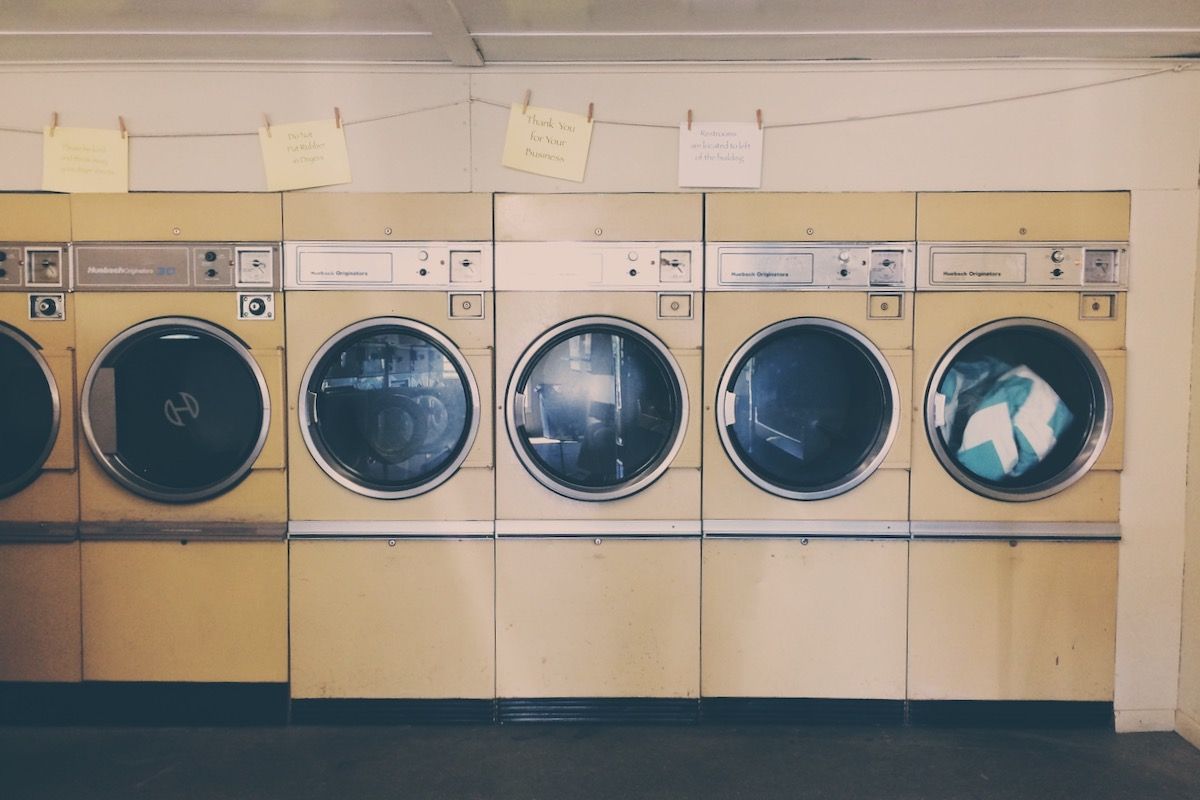
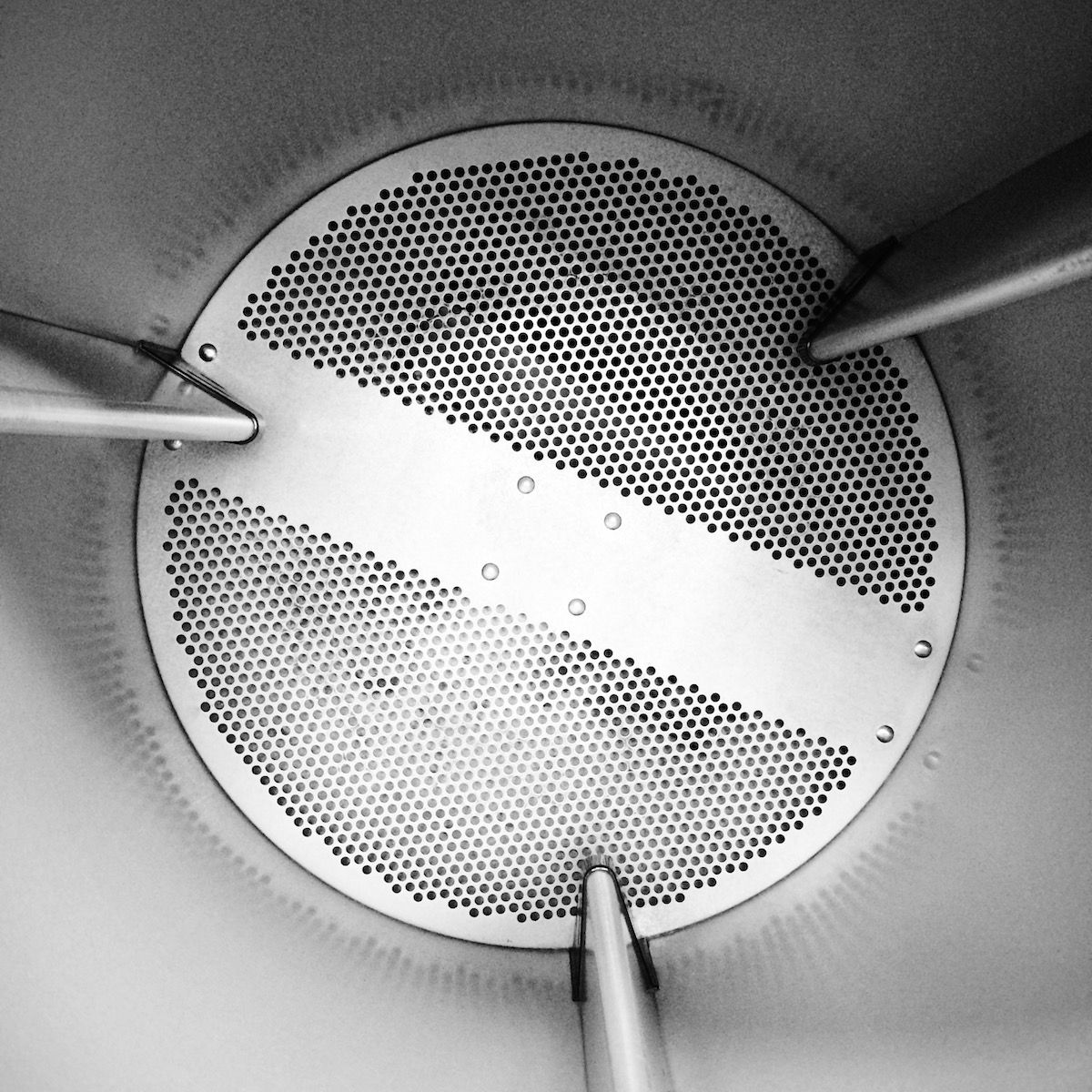
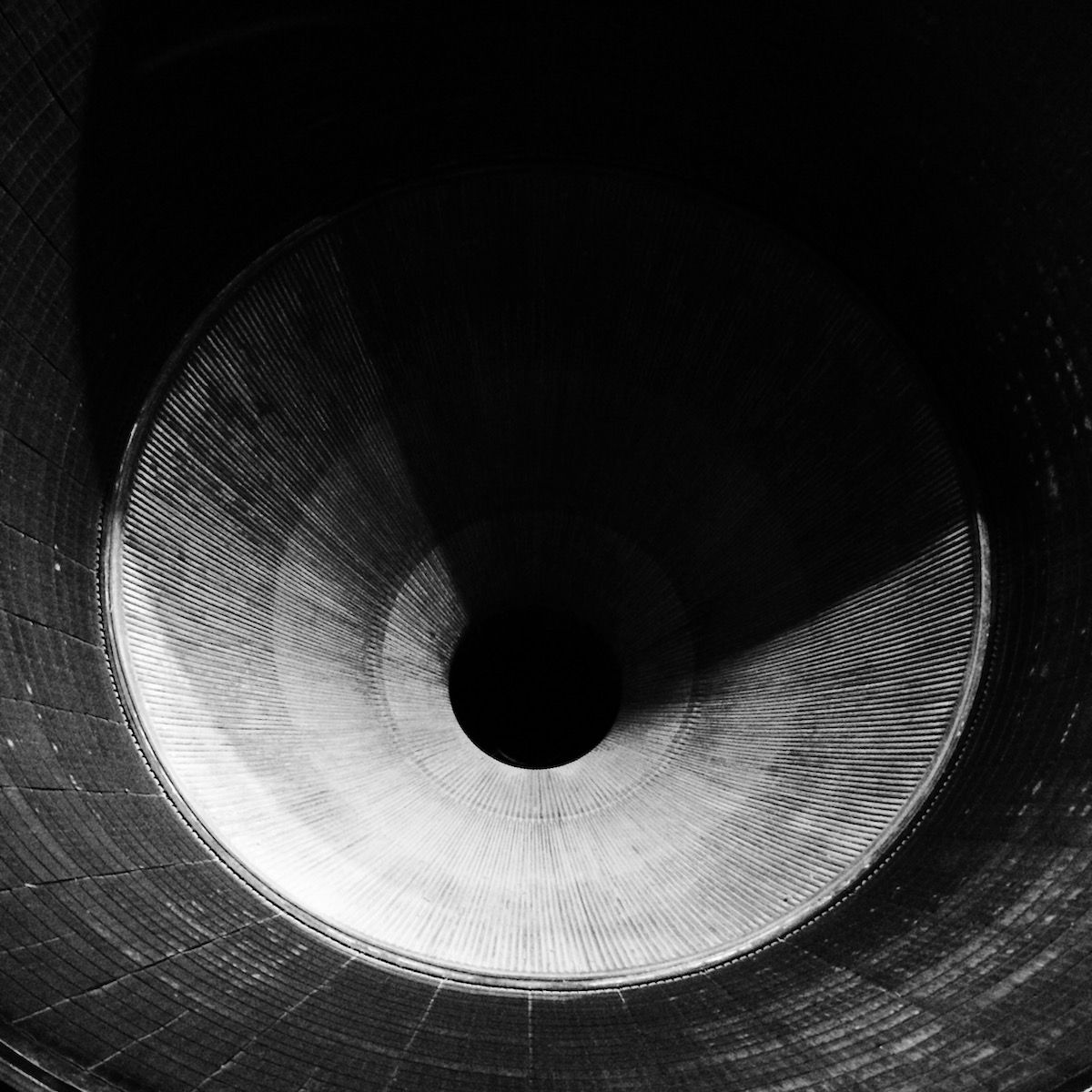
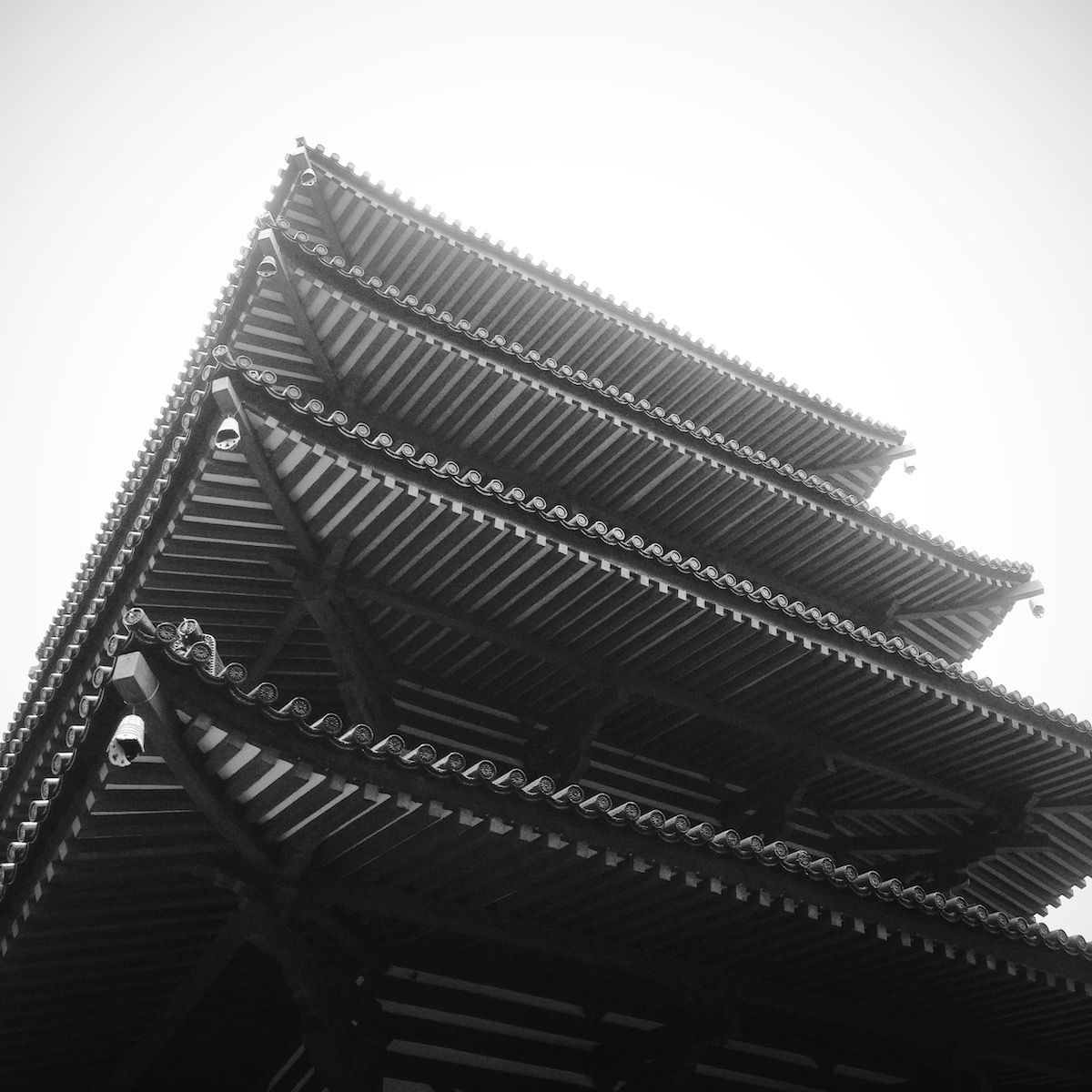
I officially started my quest to make a photo book as part of SoFoBoMo last weekend. I've decided that my theme will be "Architectural Abstracts" - inspired by photographer Amanda George as I mentioned in my last post. This photo is one of the first images I took.


I must admit that the theme was partially chosen due to my time constraints. Taking photos of parts of buildings that I find interesting is something I can do while going about a normal weekend. It's not something I have to plan a lot for... I don't really need to schedule in an entire day or even half a day for a specific location. In fact, most of the photos I have so far were just taken while on a trip with the family to buy some new clothes at an outdoor shopping mall.

At first I was feeling frustrated that I wasn't going to have time to plan this all out more - to produce a real book that other people would be interested in. However, I really had a lot of fun taking photos over the weekend and have realized that my personal satisfaction is what's important.

It has also been interesting trying something different. I've never really looked so closely at buildings before - or the shadows they produce. You really can find beauty anywhere, if you just take the time to look.

I've discovered that I love my Canon G7 for taking photos like this. It's small, unobtrusive and versatile. I can't exactly say the same thing for my DSLR kit. The style of photos I'm taking requires that everything be in focus, which suits the Canon G7 well. To get the same results with a DSLR I'd probably either need a tripod (so I could stop down to f/11 - f/16 or so), or an expensive lens with image stabilization. The G7 gains points since it has image stabilization built in. The obvious downside is that the G7's images can be a bit noisy, but I'm shooting everything at ISO 80 so it's not very noticeable... and I don't think it will show up in the small prints that will be in the book.

Over the next couple of weeks, I'll be adding some of the more interesting photos to this new "Architectural Abstracts" section of the gallery.

SoFoBoMo officially kicked off on April 1 - and I had hoped to at least have a theme for my book chosen by then, but other priorities got in the way. So, I'll be delaying my start for at least another day or two.

Here are the ideas I have so far:

  • Make a series of abstract photos with large areas of solid color, that you might think were paintings at first glance. There are a few photos by Amanda George in the book "How To Look At Photographs" that inspired this idea. I'd love to see more of her work, but unfortunately can't find anything she's done online. This is the closest thing I could find in my photo library as an example, but it's not quite abstract enough:
  • There are no expansive landscapes where I live - only far too many strip malls, billboards and gas stations. I could produce a series of photos that are a commentary on the visual clutter we're bombarded with in our cities.
  • Make a series of photos of naturally occurring letters of the alphabet. Not letters that appear on a sign, but instead are formed by other objects - such as the branches of a tree forming the shape of the letter "A", or an "H" that's part of a chair. I'd also add in the numbers 0 - 9, for a total of 36 photos. I had read about a photography instructor giving this as an assignment to his students, and it seems like an interesting (but time consuming) challenge.
  • Buy some film for the Voigtlander Vitomatic IIb camera a relative gave to me as a gift and use it to take a series of photos around town. It would be my first time using film since I became seriously interested in photography, and I'd like to see what kind of pictures come out of that old thing.

Of course, while I'm out and about I could very well end up working on two or more of those ideas at the same time - depending on what I see and how I feel about it.

In preparation for SoFoBoMo, I've been reading up on different image processing techniques - things that give photos a certain look or style that sets them apart from simply fixing white balance, contrast and saturation. One popular technique is "cross-processing", which involves processing film in a chemical solution intended for a different type of film - causing drastic shifts in color and contrast. The most common variation of this is processing color negative film in chemicals intended for slide film (C-41 as E-6).

For digital photographers, there are many tutorials online that show how to achieve similar results in Photoshop, mostly using simple curves adjustments.


Left: original image, Right: cross-processed in Photoshop by adjusting curves
(view a larger version)

However, I use Aperture (version 2) to manage my photo collection - and while I love Photoshop, I'd like to do as much as possible in Aperture in order to save on time and hard drive space. So, I set out to recreate the cross-processing technique in Aperture, which is somewhat problematic since it doesn't have the same curves adjustments as Photoshop. Instead, you can do "levels" adjustments on the red, green and blue channels... but, as I discovered, you have to do quite a bit more tweaking in Aperture to get the same results. So, I created a levels preset in Aperture that results in images that pretty closely match what you'd get from following the aforementioned Photoshop tutorials.

Without going into too much boring detail, I did this by applying only the red channel adjustment to an image in Photoshop - then, with the same image in Aperture, adjusted the red channel levels until it matched what I was seeing in Photoshop. Then I did the same for the green and blue channels individually. Finally, I combined all three channel adjustments and compared the Photoshop version to the Aperture version for some final tweaking to make sure I got it right. Hardly a scientific process, and the match is far from perfect - but I think it's close enough to be usable - especially considering the fact that the overall look of an image is very subjective anyways.


Left: cross-processed in Aperture, Right: cross-processed in Photoshop
(view a larger version)

I'd offer the preset as a download, but there doesn't appear to be any way to import/export adjustment presets in Aperture... so, I'll run through the exact steps required to create the preset here:

STEP 1

In Aperture, select an image to cross-process and bring up the adjustments panel. You may want to make any necessary exposure adjustments now using the "Exposure" part of the adjustments panel... a badly underexposed image will still look badly underexposed after cross-processing.

Find the "Levels" portion of the adjustment panel. That is what you'll be working with for this tutorial. If you've already made adjustments to the levels, you'll want to reset them or choose a different image. Near the upper right corner of the Levels pane, is a button that has a rectangle with two vertical dotted lines running through it... click that button to show the "quarter-tone controls":

STEP 2 - SETTING THE RED CHANNEL

Select "Red" from the "Channel:" pulldown menu, and do the following steps in the order listed:

  1. set B: to 0.21
  2. set W: to 0.92
  3. set G: to 0.53
  4. set 1/4: to 0.38
  5. set 3/4: to 0.66
  6. at the top of the levels graph, drag the first triangle to the left about 2-3mm (the triangle whose line connects to the 1/4 point)... unfortunately there's nowhere to enter a numerical value for this adjustment

Now your Red channel should look like this:

STEP 3 - SETTING THE GREEN CHANNEL

Select "Green" from the "Channel:" pulldown menu, and do the following steps in the order listed:

  1. set G: to 0.42
  2. set 1/4: to 0.25
  3. set 3/4: to 0.63

Your Green channel should look like this:

STEP 4 - SETTING THE BLUE CHANNEL

Select "Blue" from the "Channel:" pulldown menu, and do the following steps in the order listed:

  1. set W: to 0.94
  2. set 1/4: to 0.21
  3. set 3/4: to 0.81

Your Blue channel should look like this:

STEP 5 - SAVING THE PRESET

In the upper right hand corner of the "Levels" pane, click on the icon that looks like a gear and select "Save as Preset...". Give your preset a name like "Cross-Process" and click the "OK" button. You now have a Levels adjustment preset you can use on any image - simply by clicking on the gear icon in the Levels pane and choosing "Cross-Process" (or whatever you named it). Your results may vary depending on the image, but it should get you in the ballpark and you can make adjustments as needed from there (the same goes for the Photoshop tutorial cross-processing techniques).

STEP 6 - TAKING IT A STEP FURTHER

Some of the cross-processing tutorials suggest also adding a color layer to give the image more of a yellow or green tone. While there's no exact match for doing this in Aperture, you can add a "Color Monochrome" adjustment for a similar effect. Choose something like a pure yellow with RGB values 255, 255, 0 for your color, and move the intensity slider to somewhere in the 0.2 range as shown here:

The difference between Photoshop and Aperture here, is that Aperture applies the adjustment as a color change - rather than simply overlaying the solid color like a "Normal" layer in Photoshop... which means that the effect won't be as noticeable in dark areas of your image. You can compensate for this some by raising the "Shadows" adjustment in "Highlights & Shadows".

If you like, also add some vignetting using Aperture 2's new vignette adjustment.

The Finished Product

Now your retro cross-processed masterpiece is complete, and you have a preset saved within Aperture to easily reuse the effect on any image you like. Here's a comparison of the final images from Aperture and Photoshop after the color toning and vignetting are applied:


Left: final image in Aperture, Right: final image in Photoshop
(view a larger version)

Find more in Gallery and Musings

Recent Additions to the Gallery

Archives